
Course workspace
My toolbox, right beside my learning.
The sidebar of the learning screen gathers this course's notes, Markdown files and files. Open, read and edit them without stopping the conversation.
Screens are samples (shown in Japanese).
Each course becomes your own workspace.
Your notes, Markdown files and files are gathered course by course. You can open them at once, even in the middle of an episode.
Your folders, where things live, are all in one place, and courses work as labels: you can add as many as you like.
How the learning screen is laid out
Use this course's notes, Markdown files and files without leaving the episode.
Screens are samples (shown in Japanese).
Opens with one button
Open or close it at any time with the button at the top right of the learning screen.
Four tabs
All, Notes, Markdown and Files. Only what belongs to this course is listed.
Tap to open it large
What you tap opens large where the conversation is. Close it, and you are back in the episode.
Any width you like
Drag the edge to change the width. Double-click it to go back to the original width.
What you can do now
Tools linked to this course
One button at the top right of the learning screen opens the sidebar. It lists only what is linked to this course.
Tap, and it opens large where the conversation is
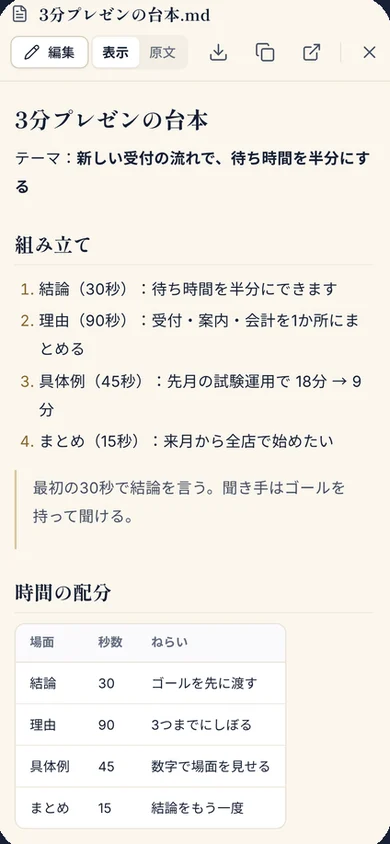
Markdown is shown in an easy-to-read layout, with headings, lists, quotes and tables. Images, video and audio can be viewed or played right there.
Write Markdown on the spot
Write something new with "+" in the sidebar. When you save it, it is linked to this course. Anything you open can be changed with "Edit".
Gather your tools with "Link"
Markdown you wrote before can be added to this course with one button. It stays in the same folder.
One set of folders
Markdown files, files and Coreroids can go in the same folders. The same folders appear on every page.
Narrow down by course
Only what belongs to the courses you check is listed. Check as many as you like; your choice stays when you move to another page.
Recently used
Listed under Today, Yesterday, This week and Earlier. You can also search by name and change the order.
On a phone, too
On a phone, the sidebar and Markdown files open full screen.
"Prompts" are now called "Markdown". What you saved is unchanged.
Folders are where things live; courses are labels
Markdown files, files and Coreroids now share one set of folders. Check a course, and only what belongs to that course is listed.
Where things live (folders)
Filtered by "Presentations that land in 3 minutes"
- 3-minute presentation scriptMarkdownPresentationsPresentations that land in 3 minutes
- Photo of the whiteboardFilePresentationsPresentations that land in 3 minutes
- Presentation practice partnerCoreroidPresentationsPresentations that land in 3 minutes
- Questions I might getMarkdownWork notesPresentations that land in 3 minutesWriting with AI
- Reflection notesMarkdownOutside foldersPresentations that land in 3 minutes
Screens are samples (shown in Japanese).
In as many courses as you like
One thing can be linked to several courses, while it stays where it lives.
Stays narrowed down
The courses you check stay checked when you move to another page, and the next time you open it.
Linked from the start
Files and Markdown you make inside a course are linked to that course.
Why it helps, on Geniam
Your learning is not interrupted
No going back and forth between pages to find your material. Open it beside the episode, read it, and return to the conversation.
What you write feeds the next episode
Scripts and notes you write during an episode stay linked to that course. The next time you open the course, they are right there.
Found without tidying up
One set of folders, and courses as labels. Wherever you put something, narrow down by course and it shows up.
Yours to take with you
Markdown downloads as a .md file, and you can copy the source text too. Use it with AI or note apps outside Geniam.
Works the same on every page
The Markdown, Files and Coreroids pages are laid out the same way. Learn it once, and use it the same way everywhere.
How to use it
On the learning screen
Open the sidebar
Press the button at the top right of the learning screen, and the sidebar opens on the right.
Switch tabs
Choose from All, Notes, Markdown and Files.
Open it to read and write
Tap to open it large where the conversation is. Markdown can be changed with "Edit".
Link, or write something new
Add other Markdown with "Link", and write something new with "+".
On the Markdown, Files and Coreroids pages
Choose a folder
Choose where to look under "Folders" on the left.
Narrow down by course
Check a course under "Courses", and only what belongs to it is listed.
Link to a course
Use "Link to a course" in the details to add as many as you like.
Open from recently used
Go straight back to what you just used, from "Recently used".
For example, you could use it like this
In a presentation course
Open the script you made in the last episode in the sidebar, and rewrite it on the spot as you answer the teacher's questions.
In an English conversation course
Link your self-introduction and the phrases you use often, and look back at them right away while you practise.
In a writing course
Keep your Markdown draft open as the episode goes on, and download it as a .md file when it is finished.
The same note in several courses
Write one reading note, and link it to both your presentation course and your writing course.
Questions about the course workspace
Where do I open the sidebar?
With the button at the top right of the learning screen (Tools linked to this course). Press it again, or press ×, to close it.
Can I use it on a phone?
Yes. On a phone, the sidebar and Markdown files open full screen.
Can I use one Markdown file in several courses?
Yes. You can link it to as many courses as you like.
Does linking to a course move it out of its folder?
No. The folder stays where it lives, and the course is added as a label.
If I unlink something, is it deleted?
No. Only the link to that course is removed; your Markdown files and files stay.
What happens to my existing folders?
The separate folders for Files, Prompts and Coreroids are merged into one set automatically the first time you open them. Folders with the same name in the same place become one, and their contents stay as they are.
If I delete a folder, is what is inside deleted too?
No. What is inside moves up one level.
Where did "Prompts" go?
They are now called "Markdown". What you saved is unchanged, and you can also download it as a .md file.
Are there files the sidebar cannot open?
Images, video, audio and Markdown open right there. Please download files such as PDFs to open them.


Open it every day, even for five minutes, and learning becomes a habit.
Now, build yourself, together with AI.
Generate who you are.
Begin with the episodes you can try for free.